

Mastering Your Resident Portal: A Guide to Tenant Web Access (TWA) and rmResident
Convenience and flexibility are essential when managing your living space. To ensure your residency is as seamless as possible, our property management platform provides two robust digital tools: Tenant Web Access (TWA) and the rmResident mobile app. Whether you prefer using a desktop computer at your convenience or managing your account on the go via your smartphone, these platforms empower you to take full control of your residency.
This comprehensive guide walks you through setting up your account, making one-time payments, configuring automatic recurring payments, and utilizing other resident tools designed to simplify your everyday life.
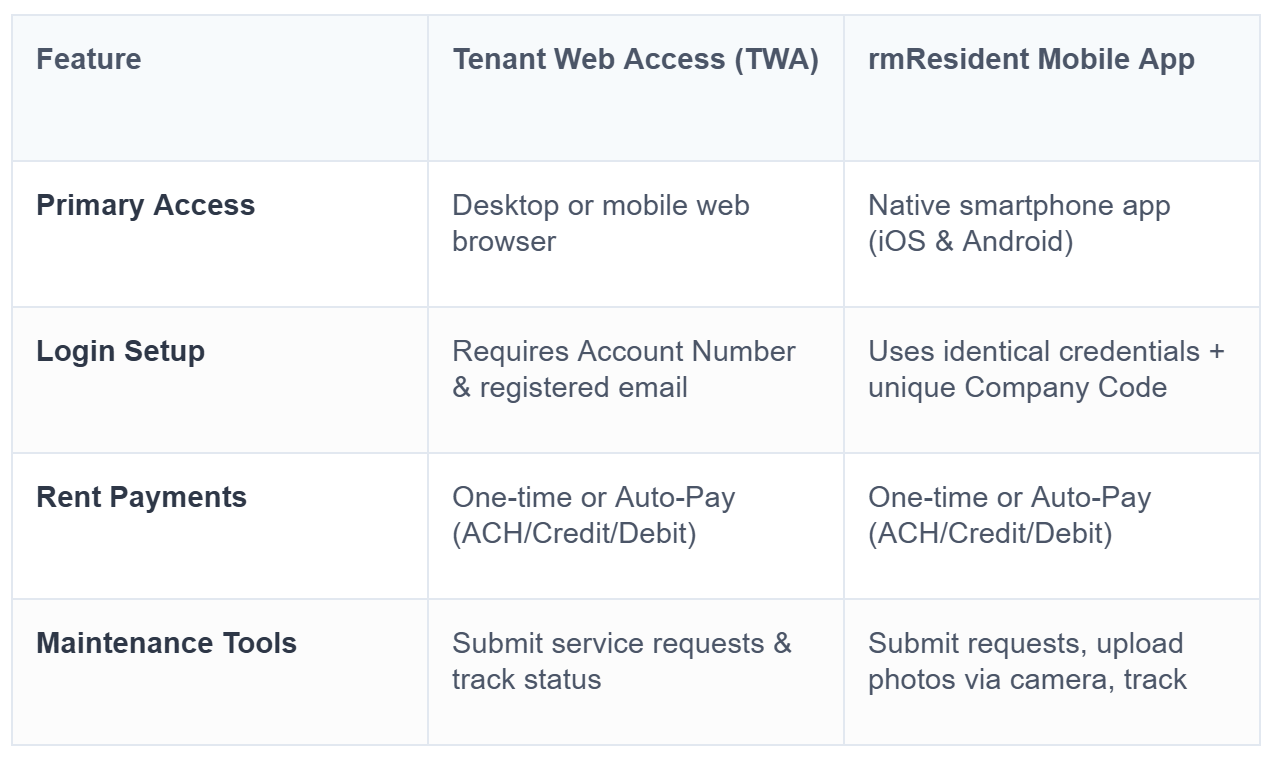
📋Platform Overview: TWA vs. rmResident
Both platforms connect directly to our central property management system, meaning your ledger, balance, and history sync in real time. You can use them interchangeably based on your preferences.
🔑Step 1: Setting Up and Logging Into Your Account
🆕Account Creation
Please contact the Park Office to have your TWA Account created for you. You will receive and email from donotreply@rentmanager.com asking you to verify your account.
Request a TWA account from the Park Office.
Check your Inbox/Spam folder for an email titled “Verify your Web Account” from donotreply@rentmanager.com.
Click on “Finalize”
Enter the requested Information. Please note the password requirments:
Password Criteria:
At Least 8 Characters Long
At Least 1 Numeric Character
At Least 1 Uppercase Alphanumeric Character
At Least 1 Lowercase Alphanumeric Character
💻Accessing the Desktop TWA Portal
Navigate to the unique Tenant Web Access portal URL: https://twa.ranchodelreymhe.com/
Enter your account email address.
Enter the password that you created when registering the account.
📱Accessing the rmResident Mobile App
Once your account is activated online, taking it mobile is incredibly easy.
Open the Apple App Store or Google Play Store on your device and search for rmResident. Download and install the free app.
Launch the app. You will be prompted to enter a specific Company Code: houser. This code identifies your property management company and can be obtained from your Park office. Tip: If you log into TWA from your smartphone browser, there is often a quick download link that automatically pre-populates this company code for you!
Log in using the exact same email address and password you established for the web portal.
💳Step 2: Making a One-Time Rent Payment
Both platforms accommodate multiple secure electronic payment methods, including ACH (direct bank transfers) and major credit or debit cards. ACH transfers typically feature significantly lower processing fees compared to card transactions.
🌐Via the TWA Web Portal:
Log in and locate the Charges tile on your main dashboard, or click Make a Payment from the upper navigation bar.
Review your current balance. Enter your desired Payment Amount.
Select your preferred Payment Type (e.g., Bank Account or Credit Card).
Input your banking routing and account numbers, or your card details along with the associated billing address.
Review the payment details, including any applicable transaction fees, and click submit to instantly process the payment.
📲Via the rmResident App:
Open the app and view your dashboard account summary.
Tap the payment icon or button.
Enter the payment amount and specify your payment details. You can save payment methods securely within the app for swift future transactions.
Confirm and finalize your transaction.
🔄Step 3: Setting Up Auto-Pay (Automatic Recurring Payments)
The easiest way to avoid late fees is by establishing Auto-Pay, scheduling your rent and recurring fees to deduct automatically each month. You can manage and adjust these preferences at any time.
⚙️How to Configure Auto-Pay:
Click or tap the drop-down settings menu adjacent to your profile name (located in the top-right corner of TWA, or in the account/settings tab of the rmResident app).
Select Payment Settings.
If you haven’t already, select Add to securely store a recurring payment method (such as your checking account for low-fee ACH transfers).
Navigate to the Auto-Pay section and select Setup Automatic Payments (or update existing parameters).
Specify your preferences: indicate the exact day of the month you wish the funds to be drawn, and define the payment limit options (such as paying the full balance due or setting a maximum cap).
Accept the terms and conditions and click Save to activate automatic monthly processing.
Note: Ensure that your auto-pay configuration is finalized a few days prior to the first of the month to guarantee proper synchronization with the billing cycle.
🌟Beyond Payments: Additional Benefits
Your resident portal does much more than process rent. Take advantage of these additional features to streamline communications with the management team:
Maintenance Requests: Encountered a leaky faucet or appliance issue? Open the Service Issues tab to submit a comprehensive request detailing the problem. The rmResident app lets you capture and attach photos directly from your phone’s camera. Track the work order status from open to complete in real time.
Document Library & Electronic Signing: Access digital copies of your lease agreement, addendums, and community notices. When a lease renewal or new document requires your signature, receive an immediate notification, review the document in the portal, and electronically sign it securely.
Transaction Ledger History: Review your full ledger breakdown, including historical payments, utilities, deposits, and monthly charges to keep your personal records fully accurate.
🤝Need Assistance?
If you experience any complications setting up your TWA portal or downloading rmResident, please reach out to the Park office. We can verify your account details, provide your community code, or assist you with setting up your payment preferences. Enjoy the freedom and ease of digital account management!